
Phone: (905) 648-4571
Email: staff@heroncreek.ca

Oops! Not sure where I needed to go, so I've brought you to our list of instructions.
Instructions for Heron Creek members
How to join an online class
Many of the classes at Heron Creek are both in-person and online. Some of them are in-person only, and some of them are online only. The name of the class will tell you which one it is. These instructions will help you get set up to attend any class whose name ends with "online".
Decide which device you will use
Our online classes are run as Zoom "meetings".
You can run Zoom meetings on your phone, your laptop, desktop or notepad. Phones are handy but the screen is small and the experience may not be as satisfying.
WE RECOMMEND...
Laptops are often the best choice.
If you choose to use your phone, we assume you have installed the GymMaster app and have set up your credentials for your Heron Creek account. So if you haven't set up GymMaster yet, do that now!
Once you have decided what device you will use, click the button below!
Next step: Set up zoom on your device
Set up zoom on your device
Skip this step if you already have Zoom on your device.
1. Go to your app store, or play store, or whatever store is used by your device.
2. Search for Zoom
3. Install Zoom Workplace
Next step: Register for the class - Choose either Phone or All Other Devices
Register for the class - Laptop, Desktop or Notepad
If you have already registered for the class, skip this step and scroll down to the buttons at the bottom.
1. In your browser, go to heroncreek.ca
2. Select Member Login from the menu

3. Log in to GymMaster
If you have never logged in before, press "Forgot Password?" to send you an email that will help you set up your password.
4. Under Bookings, select Book Class

5. Make sure the class name ends with the word "online"
6. Choose the class and press Book in the upper right corner
7. Confirm the booking

The next step depends on whether the class name starts with "353"
Choose how to join the class
If you are logged on to the GymMaster portal in your browser, then the easiest way to join the class is to use the portal. If not, then you can join from one of the notification emails we send you.
How would you like to join the class?
Join the class from the web portal
Please don't join a class more than 15 minutes before it is scheduled to begin!
If you are logged on to the GymMaster portal in your browser:
1. From the portal main page, find the booking.
2. Press "Livestream"
3. That should do it! If you have any troubles, please call reception at 905-648-4571

Join the class from an email instead?
Join the class from an email
Please don't join a class more than 15 minutes before it is scheduled to begin!
We send TWO emails for each class: One when you requested the booking, and one that comes an hour before the class.
When you request the booking you get an email like this:
Booking Confirmation - Pilates Fusion in-person/online
An hour before the class, you get an email like this:
In-person/online class Pilates Fusion in-person/online coming up
It may be easier to find the "coming up" email, especially if you made the reservation a week ago! Note if the class starts before 8am, the system will not send a notification until 7am. In this case, maybe try the portal?
In either case, click on the link in the email. This will start up Zoom automatically and take you into the class.

That should do it! If you have any troubles, please call reception at 905-648-4571
Join the class from the portal instead?
Join class whose name starts with "353"
Please don't join a class more than 15 minutes before it is scheduled to begin!
1. Start Zoom Workspace
2. Press Join
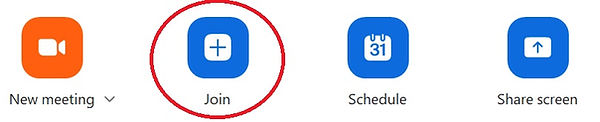
3. The meeting room ID is 353 159 6322 Type in your name in the Name field. We must be able to recognize you! We may kick you out of the class if we don't recognize your name!!
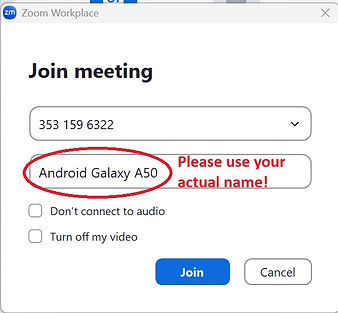
4. If you don't know the password, call the reception desk at 905-648-4571 and identify yourself, and ask for the password.
That should do it! If you have any troubles, please call reception at 905-648-4571
Enjoy the class!
Register for the class - Phone
If you have already registered for the class, skip this step and scroll down to the buttons at the bottom.
1. Log onto the GymMaster app
2. Press the "Book a class" button

3. Find the class and press "Book Now"

4. Confirm your booking
The next step depends on whether the class name starts with "353"
Join the class from your phone
Please don't join a class more than 15 minutes before it is scheduled to begin!
1. Start the GymMaster app
2. Find the class in the "My Upcoming Bookings" section.

3. Press the button as indicated above
That should do it! If you have any troubles, please call reception at 905-648-4571
Enjoy the class!
Requesting a hold
You can request a hold by one of a few ways. In person, you can fill out a form at the reception desk. Our preference, however, is that you submit the request using either the app on your phone or using the web portal from your home computer.
Before you submit your request, please familiarize yourself with our policies, which can be found here. You may not be eligible to request a hold on your membership. We have restrictions on the number of holds you can request in a year, and on the total duration of holds requested within a year.
Finally, please note the request must be processed by a staff member: It may take up to two days to process the request. Requests submitted on paper at the front desk may take up to a week.
Requesting a hold using the app
Select the "three lines" menu in the upper left corner of the screen, then choose the Memberships item.
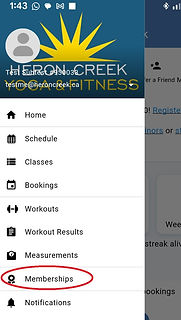
Under your membership, press the Request Hold button. If you have more than one membership (for example, if you are also a physio customer or are doing personal training) choose any membership. The staff member handling the request will apply holds to your entire account, regardless of which membership you chose.


Requesting a hold using the web browser
On the home page, look for your memberships. Press Request Hold. If you have more than one membership (for example, if you are also a physio customer or are doing personal training) choose any membership. The staff member handling the request will apply holds to your entire account, regardless of which membership you chose.


